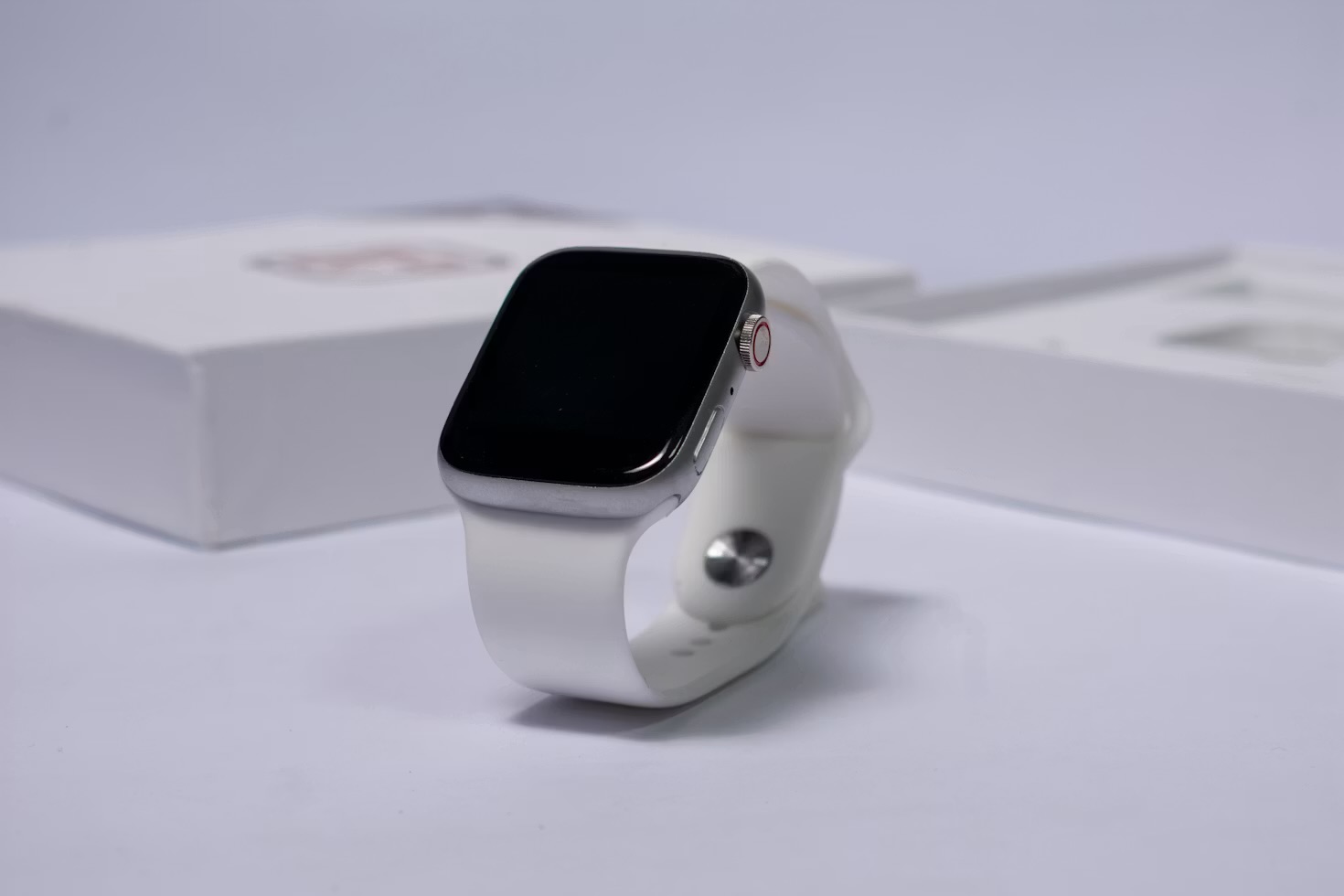
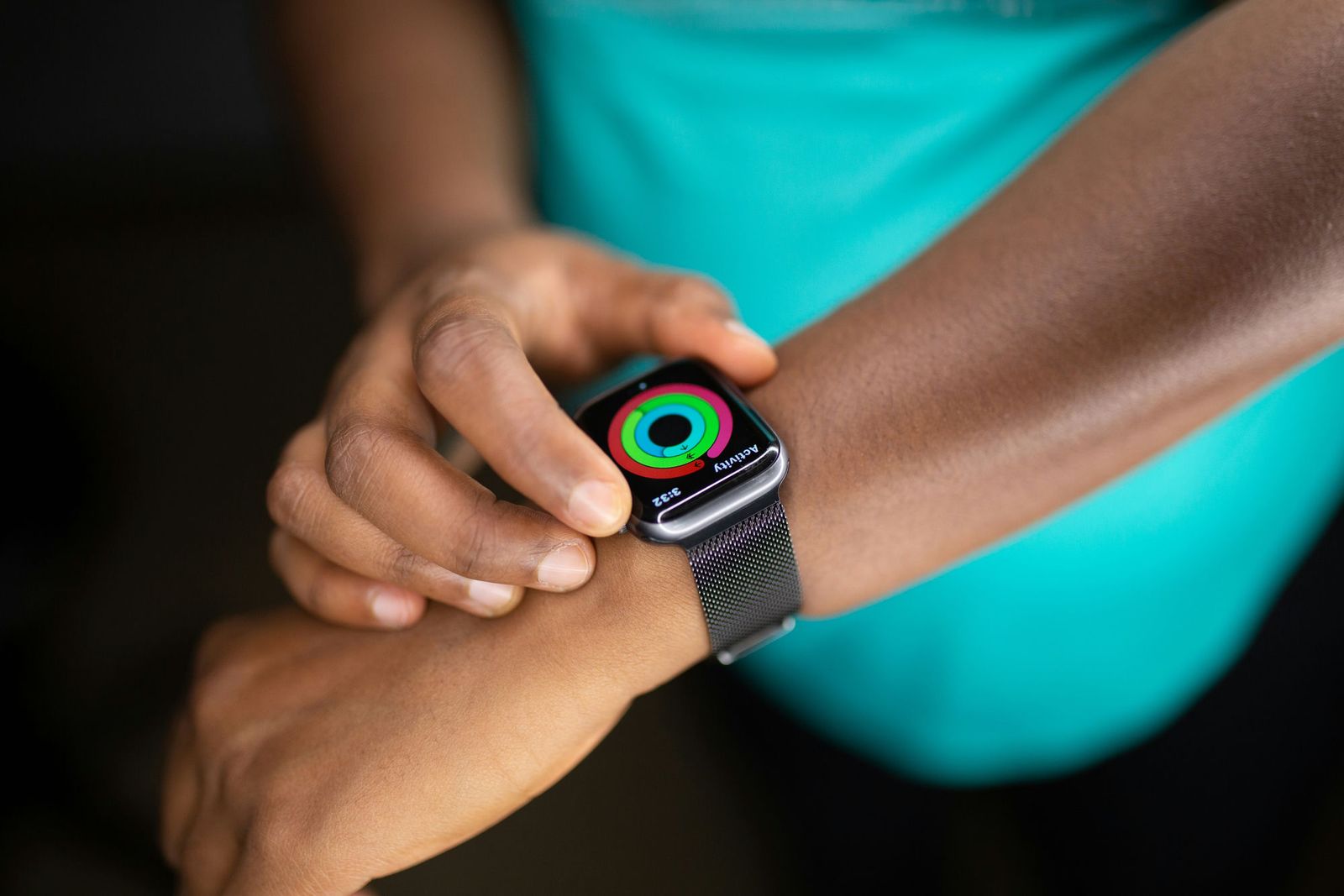
Every year the pitch for the Apple Watch is that it can do more. I've ended up believing the opposite: the watch got better the day I took most of its apps away.
I used to scroll my watch's app grid the way I scroll a phone home screen, and for a long time I thought that was the point. A colourful honeycomb of little circles, each one a promise. Then one evening I tried to start a run, and spent about forty seconds hunting for the right bubble while standing in the cold. That was the moment I decided to find out how many of those apps I had ever opened on purpose.
The audit that embarrassed me
I went through the grid one icon at a time and asked a plain question: when did I last open this on my wrist, rather than on my phone? For most of them I couldn't remember. Several had arrived on their own. By default, the watch installs the watch version of any compatible app you put on your phone, so over a couple of years it had quietly collected apps I never chose.
What was left was a short list of things I genuinely used, and a long tail of apps that were worse than the phone app they mirrored. A shopping app showing three tiny buttons. A news app that took long enough to load that I'd already pulled out my phone. A couple of games I had no memory of installing. None of them were broken. They just had no job.
Why most Watch apps lose to the phone
A watch is brilliant at exactly one kind of task: something you can finish in about five seconds without taking anything out of your pocket. Checking the time. Seeing who's calling. Starting a timer. Paying at a till. The moment a task needs reading, scrolling or typing, the phone wins, and it wins by a wide margin.
The trouble is that app makers feel they need a watch app to look complete, so they ship one. I don't blame them. But a half-finished version of the phone app, on a screen the size of a stamp, is rarely a service to anyone. If you have to think about whether to use it, you'll end up reaching for the phone anyway.
"If I'll end up pulling out my phone anyway, the app hasn't saved me anything. It has just added a step."
What I actually kept
The rule I settled on is simple: an app earns a place only if I use it when my phone is out of reach or my hands are busy. That left me with a very short list.
- Workout. Starting a run, a walk or a strength session from the wrist is the one job I do daily. Everything else about fitness tracking happens in the background. If you want the training side of it, my guide to reading Apple Watch Training Load covers what to do with the data once it exists.
- Timers. The built-in timer, started with my voice, is the most reliable cooking tool I own.
- A task app with quick add. I can dictate a task in seconds and trust it's in the list when I'm back at my desk.
- Wallet. Paying with the watch is the feature I would miss most if it vanished.
- One maps app. For walking directions, where the wrist tap beats looking at a phone.
That's about it. Notifications from everything else are handled by the phone, which has a far better screen for deciding whether they matter. I wrote about the same instinct when I listed the five wearable features I actually use every day: the useful part of a wearable is nearly always the small, boring part.
How I cleaned it up
It took about ten minutes, and none of it was clever.
- Stop the automatic installs. On the iPhone, open the Watch app, go to General and turn off Automatic App Install. This is the step that stops the grid refilling itself.
- Delete what you don't open. Press and hold an icon, tap the cross, and confirm. It only removes the watch copy; the phone app stays exactly where it was.
- Switch to list view. In the watch's settings you can change the app view to a list. A short alphabetical list is far quicker to read than a honeycomb, and it makes the remaining apps feel intentional.
- Use the watch face, not the grid. Put the two or three things you need onto the watch face as complications, so you rarely open the grid at all.
One caution: don't delete an app on the watch if it supports a complication you rely on. I removed one and lost a watch face slot I'd forgotten about, which took a minute to put right. Check your face first.
What changed afterwards
The honest answer is that nothing dramatic happened, and that was exactly the point. The watch felt calmer. Fewer stray taps, fewer apps asking for permission, fewer little red dots. Finding the workout app stopped being a search. Whether I gained any battery life I couldn't say with confidence, since I wasn't measuring it carefully, so I won't make a claim about it.
There's a wider lesson here that I keep relearning. The same pattern showed up when I looked at how accurate smartwatch heart rate monitors really are and when I tried to pick the only three running apps worth using: the right amount of software on a body-worn device is smaller than the app store would like you to believe.
My verdict: an Apple Watch is a notification filter, a workout button and a wallet. Anything beyond that has to prove itself in under five seconds, or it goes. If you only do one thing today, turn off Automatic App Install and delete the five apps you didn't choose. If you miss one, you can add it back in a minute.
If you want more of this
Everything I've tested on my wrist, from rings to sports watches, lives on the wearables and fitness tech hub. And if you'd like one honest tech experiment in your inbox each week, join the Brite newsletter. I only write when there's something worth saying.
Questions people actually ask
Do you need third-party apps on an Apple Watch?
Not many. The built-in apps and your watch face complications cover most of what a watch is good for: time, notifications, workouts, timers and payments. I keep a small handful of third-party apps for jobs the phone does badly, such as starting a workout or ticking off a task, and nothing else.
Does deleting Apple Watch apps save battery?
It can help a little, mainly if an app was refreshing in the background or pushing a lot of notifications. I noticed the watch felt calmer more than I noticed a dramatic battery change, so treat battery as a possible bonus rather than the reason.
How do I stop apps installing on my Apple Watch automatically?
On your iPhone, open the Watch app, go to General and switch off Automatic App Install. After that, apps you add to your phone stay on your phone unless you choose to install them on the watch yourself.
How do I delete an app from my Apple Watch?
Press and hold an app icon in the grid until the icons wiggle and tap the small cross, or swipe an app left in list view and tap the red delete button. You can also remove it from the Watch app on your iPhone. Deleting it from the watch doesn't delete it from your phone.
Which apps are worth keeping on an Apple Watch?
The ones you use in the moment with your hands full or your phone out of reach: a workout app, a timer, a task list with a quick add, and maybe a transit or maps app. If you only ever open it on the phone, it doesn't belong on your wrist.