I left for a long weekend eighteen months ago and spent the entire drive wondering whether I'd actually locked the front door. I hadn't — a neighbour texted me a photo of it standing wide open. Since then I've built and rebuilt the same "I'm away" routine on both Google Home and Amazon Alexa, in the same house, a season apart. This is what actually separated them once the marketing language was stripped away.
This is beginner level — everything below runs from the free Google Home or Alexa app on your phone, no code and no subscription beyond whatever your lock or camera already needs. It sits alongside the rest of what I've tested in the smart home hub, and if you're starting from a completely empty house rather than choosing between two ecosystems, the smart home starter kit is the better first stop.
The problem this actually solves
An away routine isn't a security system, and treating it like one is the first mistake people make. What it actually does is remove the dozen small decisions you'd otherwise forget to make on your way out the door: lock the door, drop the thermostat, turn off whatever was left on, arm the camera, and — the part that genuinely deters an opportunist — make the house look lived-in rather than empty while you're gone. I wanted to know which of the two big ecosystems built that routine more reliably, not which one has the flashier app.
Both Google Home and Amazon Alexa can do every piece of this from the free app on your phone. The differences show up in how much you have to fight the routine builder to get there, and in what happens the one time out of twenty when a step silently fails to fire.
Worth saying up front: neither app charges anything extra to build an away routine. The cost, if there is one, is in the locks and cameras themselves — the software is free on both sides.
Step 1: Build the routine in Google Home
Open the Google Home app and tap the plus icon, then choose Automation → New automation. For the starting trigger, "When I leave" is the most reliable option if your phone's location is already shared with the app — it fires from your handset's geofence rather than a manual tap, which matters because a routine you have to remember to start is a routine you'll eventually forget. Add the actions in this order:
- Lock the front door — the single most important action, and the one to test first on its own.
- Set the thermostat to Eco or Away mode — most Nest-compatible thermostats have this built in as a preset.
- Turn off all lights and plugs — group these into one "Downstairs" and one "Upstairs" action rather than listing every bulb individually, or the routine becomes unmanageable to edit later.
- Arm any Nest or compatible cameras to continuous recording.
- Send a notification to your phone confirming the routine actually ran — this is the step almost everyone skips, and the one that would have told me the front door lock had failed silently, twice, before I added it.
Save it, then trigger it manually from the app (not by actually leaving the house) and walk through checking that every device in the list responded. A routine that looks correct in the builder and fails on one device is worse than no routine at all, because it creates false confidence.
Step 2: Build the same routine in Alexa
Open the Alexa app and go to More → Routines → +. Alexa's location-based trigger is called "Leaving a location" and works the same way as Google's geofence, though I found it fired a few minutes later on average — worth knowing if the routine includes anything time-sensitive. Add the same five actions:
- Lock — Alexa lists compatible locks under a dedicated "Lock" action type rather than a general device toggle, which actually makes this step slightly clearer than Google's equivalent.
- Thermostat → Away mode or a set temperature, depending on what your specific model exposes to Alexa.
- Lights and plugs off, grouped the same way as the Google version.
- Camera → Start recording or arm your security mode, if you're running Ring, Blink or another Alexa-integrated camera.
- Notification — Alexa's routine notifications are genuinely more detailed than Google's, listing which specific action ran rather than just confirming the routine fired.
Test it manually the same way: trigger it from the app, then physically check every device before trusting it to run unattended. The single most common failure I hit on the Alexa side wasn't the routine itself — it was a smart plug that had silently dropped off Wi-Fi and simply didn't respond to the "off" command, with no error shown anywhere in the app.
Step 3: The part that actually matters — locks, cameras and the account behind them
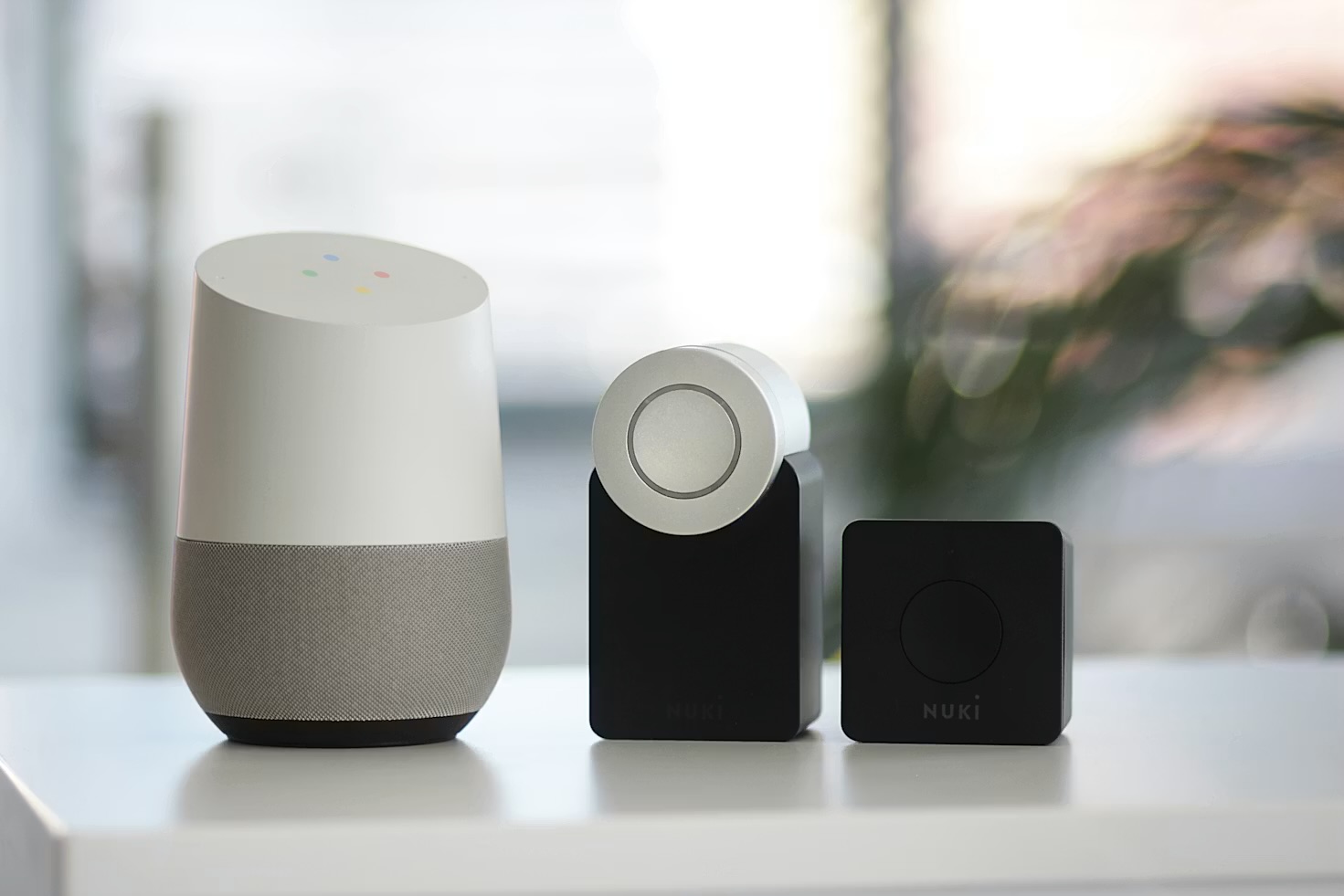
Most current smart locks and cameras support both ecosystems, either natively or through Matter — the interoperability standard I covered in Matter 1.6: the smart home fix I've waited years for — which both Google and Amazon have adopted. I've written separately about the smart lock myth I believed for years before actually testing one — the short version is that a good lock is more reliable than a good deadbolt, not less, but the ecosystem it's paired with matters less than the lock hardware itself.
What matters more than either app is the account sitting behind it. Neither Google nor Alexa is the weak point in this setup — a compromised Google or Amazon account is, because that account is what actually holds the "unlock the front door" command. Before handing either ecosystem control of a physical lock, I'd secure that account properly first; I went through exactly how in passkeys vs a password manager: what I actually use, and the short version is that a passkey on the account controlling your locks is worth setting up before the locks themselves.
Step 4: Two trips, two ecosystems — what actually happened
I ran the Google Home routine for one long weekend away and the Alexa routine for another, roughly a season apart in the same house with the same lock and the same lights. Three things separated them in practice rather than on paper:
- Reliability of the trigger. Google's geofence-based "When I leave" fired consistently within a minute of me actually driving off. Alexa's equivalent fired reliably too, but noticeably later — once nearly ten minutes after I'd left, which is long enough for a door to sit unlocked if that were the only signal you were relying on.
- What happens when something fails. Alexa's notification told me exactly which device didn't respond. Google's told me only that the routine had run, with no detail on a partial failure — I only caught the failed lock because I'd added the confirmation step and happened to check it against the lock's own app afterward.
- Camera integration. Alexa's support for third-party cameras (Ring, Blink, and others outside Amazon's own hardware) was noticeably broader than Google's, which leans harder toward its own Nest line working smoothly and treats everything else as a second-class citizen in the routine builder.
Step 5: Which one I actually kept running
I kept the Google Home routine as the one that actually runs on every trip, but not because it's flawless — it's because the trigger fires faster and more consistently, and a door that locks a minute after I leave beats one that locks accurately but ten minutes late. If your cameras are the part you care about most, or you're already invested in Ring or Blink hardware, Alexa's broader camera support is the stronger reason to go the other way. Neither answer is wrong; they're optimising for a different failure mode, and it's worth being honest with yourself about which one you'd rather guard against.
That verdict is about the routine builder specifically, not the assistant behind it — Amazon has since made Alexa+ a free, permanent Prime perk, and the AI upgrade genuinely changes how good Alexa is to talk to day-to-day, even though it hasn't changed which one wins an away-routine trigger race.
Common mistakes worth avoiding
- Trusting the routine before testing every device individually. A routine that looks complete in the builder can still silently skip a device that's dropped off Wi-Fi — test each action, not just the routine as a whole.
- Skipping the confirmation notification. It's the one step that actually tells you whether the routine worked, and it's the step almost everyone leaves out because it feels optional.
- Relying on the geofence trigger alone for anything time-critical. Both ecosystems' location triggers can lag by several minutes — a manual "Leaving now" shortcut on your phone's home screen is a useful backup for the one day it actually matters.
- Securing the locks but not the account. A strong physical lock paired with a weak, reused password on the app controlling it is a downgrade, not an upgrade, on a plain mechanical deadbolt.
Where this earns its keep: not in any single trip, but in the drive to the airport where I no longer wonder whether the door is actually locked — because I checked, and the app told me it was.
If you'd rather both routines kept working through a home broadband outage rather than depending on either company's cloud, that's exactly the gap running my smart home fully offline on Home Assistant closes — it isn't a replacement for Google or Alexa so much as a local backup neither of them offers on its own. And if you're curious how I actually check either app day to day rather than just when I'm travelling, I keep both pinned to the same iPad I use to run this whole site, which I wrote up in how I actually use my iPad Pro to run this site.
An away-mode routine is also one of the few that survives the cull everyone eventually does. When I cut half my automations I kept almost nothing, and the handful of smart home routines still running day to day are all the same shape as this one: one trigger, one job, no cleverness to go wrong.
Want more setups like this one? I send an honest, tested-at-home tech verdict to my newsletter every week — sign up here and I'll send the next one straight to your inbox.
Questions people actually ask
Is Google Home or Amazon Alexa better for home security?
Neither is a dedicated security system, and I wouldn't sell either as one — but for an away routine that locks doors, checks lights and arms cameras on a single trigger, Google Home's routine builder was the more reliable of the two in my own testing, while Alexa's third-party camera support was broader. The honest answer is that the lock and camera hardware you choose matters more than which voice ecosystem is running it.
Can I use Google Home and Amazon Alexa in the same house?
Yes, and plenty of households do — a Nest thermostat next to an Echo speaker is common. The friction only shows up when you want ONE away routine to control devices split across both apps, which is exactly why this guide builds the same routine twice rather than assuming you've picked a side.
Do I need a separate smart home hub to run an away routine?
No. Both the Google Home app and the Alexa app can run a full away routine — locks, lights, thermostat, cameras — entirely from your phone with no extra hub required, provided your devices are Wi-Fi or Matter-compatible. A hub like Home Assistant becomes worth it once you want that routine to keep working during an internet outage, not before.
Will my existing smart lock work with both Google Home and Alexa?
Most current smart locks support both, either natively or through Matter, which both ecosystems adopted. Check the product listing for "Works with Google Home" and "Works with Alexa" badges specifically rather than assuming — a small number of budget locks still only support one.
Is it safe to let a voice assistant lock and unlock my front door?
It's as safe as the account controlling it. The lock itself isn't the weak point in either ecosystem — a compromised Google or Amazon account is, which is why securing that account with a passkey or a strong, unique password matters more here than in almost any other smart home decision you'll make.